Active Directory - PowerShell Automation
Active Directory - PowerShell Automation
What would a lab in Active Directory be without having a group of users populated? We could try to add some manually, I suppose ... but ... uh, that could take a long long time and we don't have a long long time.
A big part of running tasks in Active Directory is the able to Script your way to efficiency and success. While I am a fan of Bash and Python, we are working in a Windows environment so what better way to go than PowerShell?
Steps
Step 1: Download and Run the PowerShell Script
-
We want to now grab the script from Josh Madakor's GitHub. Copy and paste the following link into IE to download the script and Save as to your desktop:
https://github.com/joshmadakor1/AD_PS/archive/master.zip -
Extract the contents of the zip file to your desktop. You should see a folder called
AD_PS-master. Inside this folder, you'll find a script calledCREATE_USERS.ps1. There is also a plain text file callednamesthat contains a list of names that the script will use to create users. This file contains about 1000 names. -
Open the Names file and at the top, add your own name. Save the file.
-
Click the start menu and then Windows Powershell > right click Windows PowerShell ISE > More and then Run as an administrator. Click Yes on the User Account Control popup.
-
In the PowerShell ISE window, click File > Open and navigate to the
1_CREATE_USERS.ps1script. Open the script.
Here is the script:
# ------------ EDIT THESE VARIABLES ------------ #
$PASSWORD_FOR_USERS = "Password1"
$USER_FIRST_LAST_LIST = Get-Content .\names.txt
# --------------------------------------------- #

$password = ConvertTo-SecureString $PASSWORD_FOR_USERS -AsPlainText -Force
New-ADOrganizationalUnit -Name _USERS -ProtectedFromAccidentalDeletion $false

foreach ($n in $USER_FIRST_LAST_LIST) {
    $first = $n.Split(" ")[0].ToLower()
    $last = $n.Split(" ")[1].ToLower()
    $username = "$($firstSubstring(0,1))$($last)".ToLower()
    Write-Host "Creating user $($username)" -BackgroundColor Black -ForegroundColor Cyan

    New-AdUser -AccountPassword $password `
               - GivenName $first `
               - Surname $last `
               - DisplayName $username `
               - Name $username `
               - EmployeeID $username `
               - PasswordNeverExpires $true `
               - Path "ou=_USERS,$(([ADSI]`"").distinguishedName)" `
               - Enabled $true
}
Please download the script from the GitHub link provided as it contains the full script. The script above is a snippet and may not work as expected.
Step 2: Run the Script
-
Click the green play button in the PowerShell ISE window to run the script.
dangerNote that running this script will produce a security warning, screaming about the script not being digitally signed. This is a security feature in PowerShell to prevent malicious scripts from running. In this case, we know the script is safe and we are running it in our lab, so we can bypass this warning in our non-production environment.
To bypass this warning, run the following command in PowerShell:
Set-ExecutionPolicy UnrestrictedYou will be prompted to confirm this action in a popup. Click Yes to All.
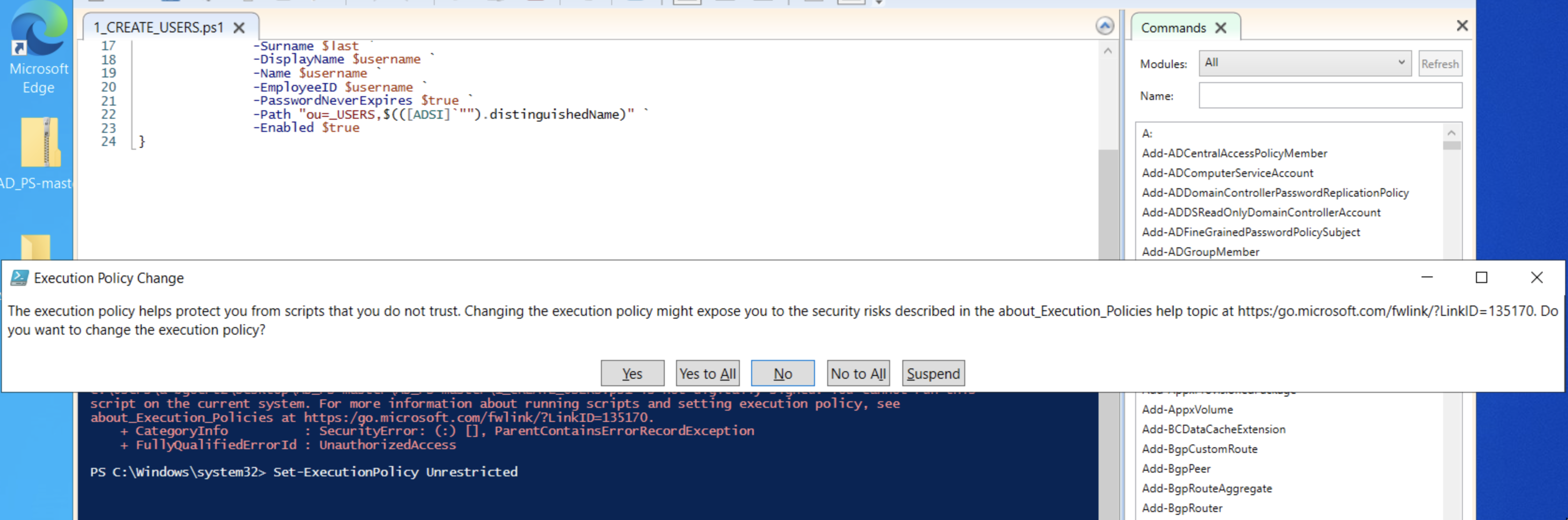
-
Run the script again by clicking the green play button. You will actually see the script fail again. We first need to navigate to the folder where the script is located. Run the following command in PowerShell:
cd C:\Users\<your_user_name>\Desktop\AD_PS-master\AD_PS-masterReplace
<your_user_name>with your username if it's different. Mine wasa-bgoertzwhich I walked through setting up in a previous step.To check that your script is in the correct location, type
lsand you should see theCREATE_USERS.ps1script. -
Run the script again by clicking the green play button. You'll see a warning pop up about running scripts. Click Run Once.
-
Enjoy the show! You'll see a bunch of users being created in the PowerShell ISE window.
-
Now when you open Active Directory Users and Computers, you'll see a new Organizational Unit called
_USERSwith all the users you just created.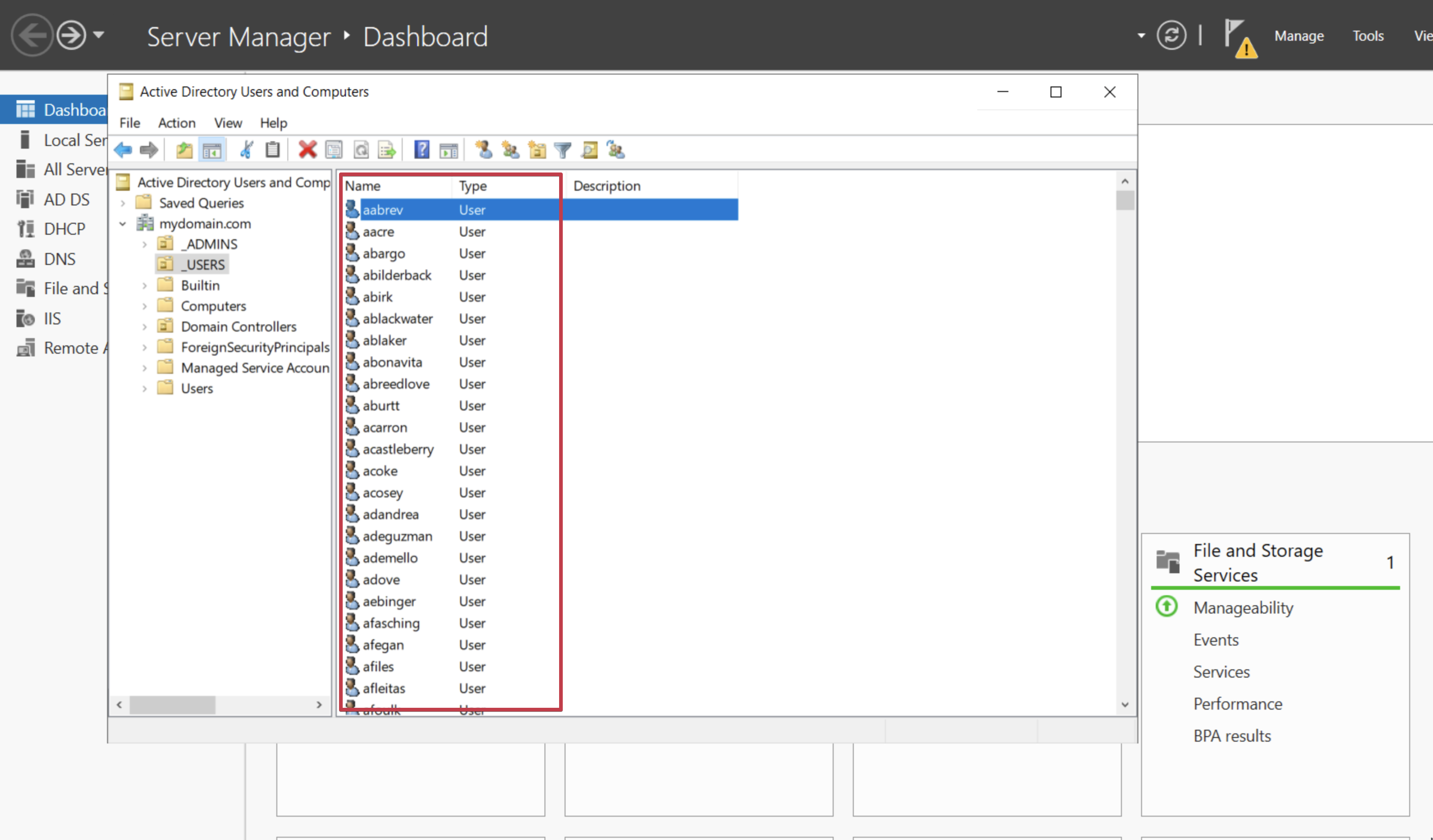
-
Go ahead and right click the
_USERSOU and select ... Find. In the Find Users, Contacts, and Groups window, click Find Now. You'll see all the users you just created.
See if you can find your name in the list!
Next up, we will be setting up our clients to connect to the network using the VPN we set up in the Active Directory - RAS and NAT guide.