Active Directory Domain Services
Now that we have our Windows Server 2022 VM set up and with our NICs ready to go, we can begin the process of installing Active Directory Domain Services. This is the first step in creating a domain controller for our lab environment.
Install Active Directory Domain Services
Once you have your Windows Server 2022 VM up and running, you can begin the process of installing Active Directory Domain Services. This is the first step in creating a domain controller for your lab environment.
-
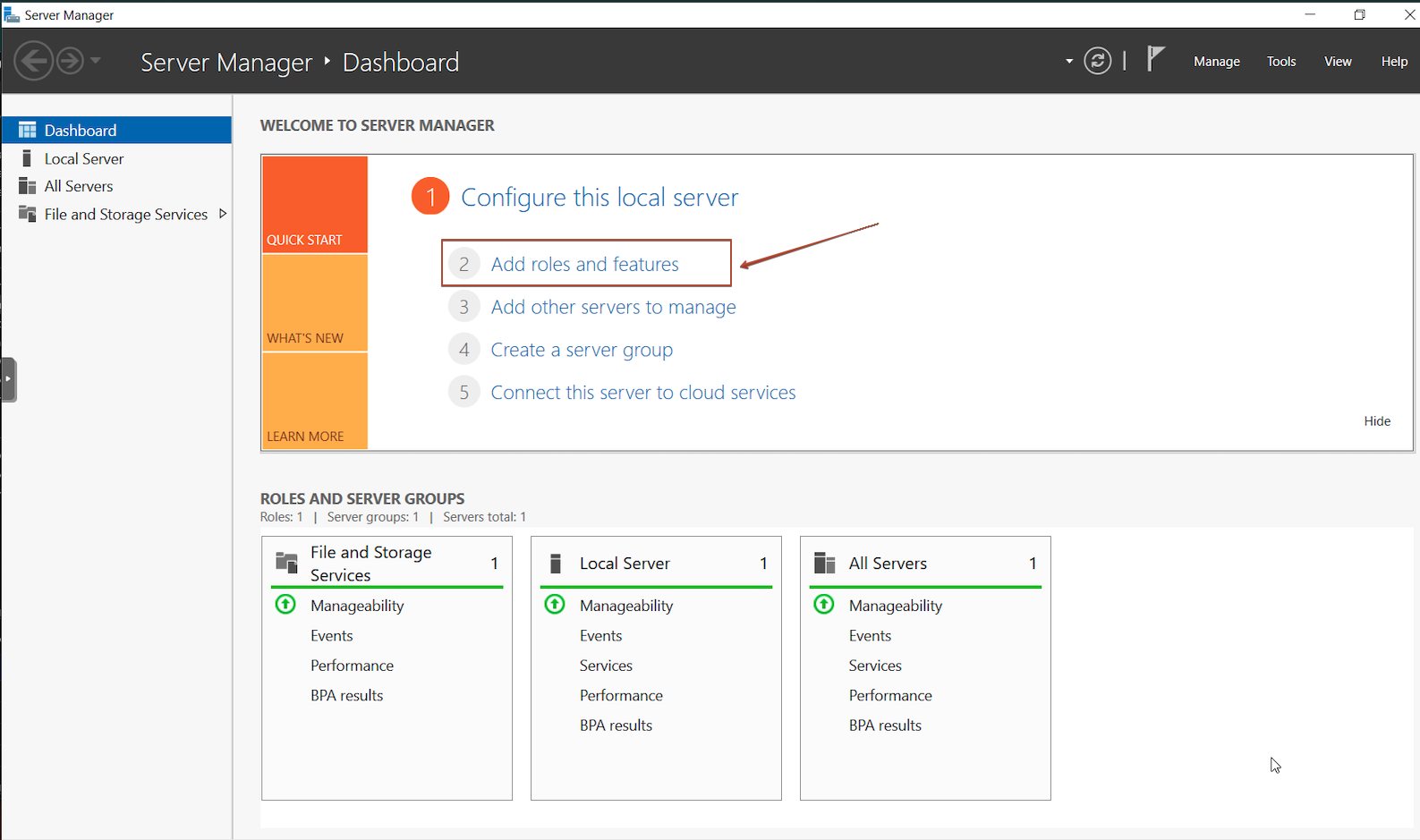
Open Server Manager and click on Add roles and features if it's not already open.
-
Click Next on the Before you begin screen.
-
Select Role-based or feature-based installation and click Next.
-
Select your server from the server pool and click Next. We already named our Windows Server 2022 VM
DomainControllerso we can see it in the list.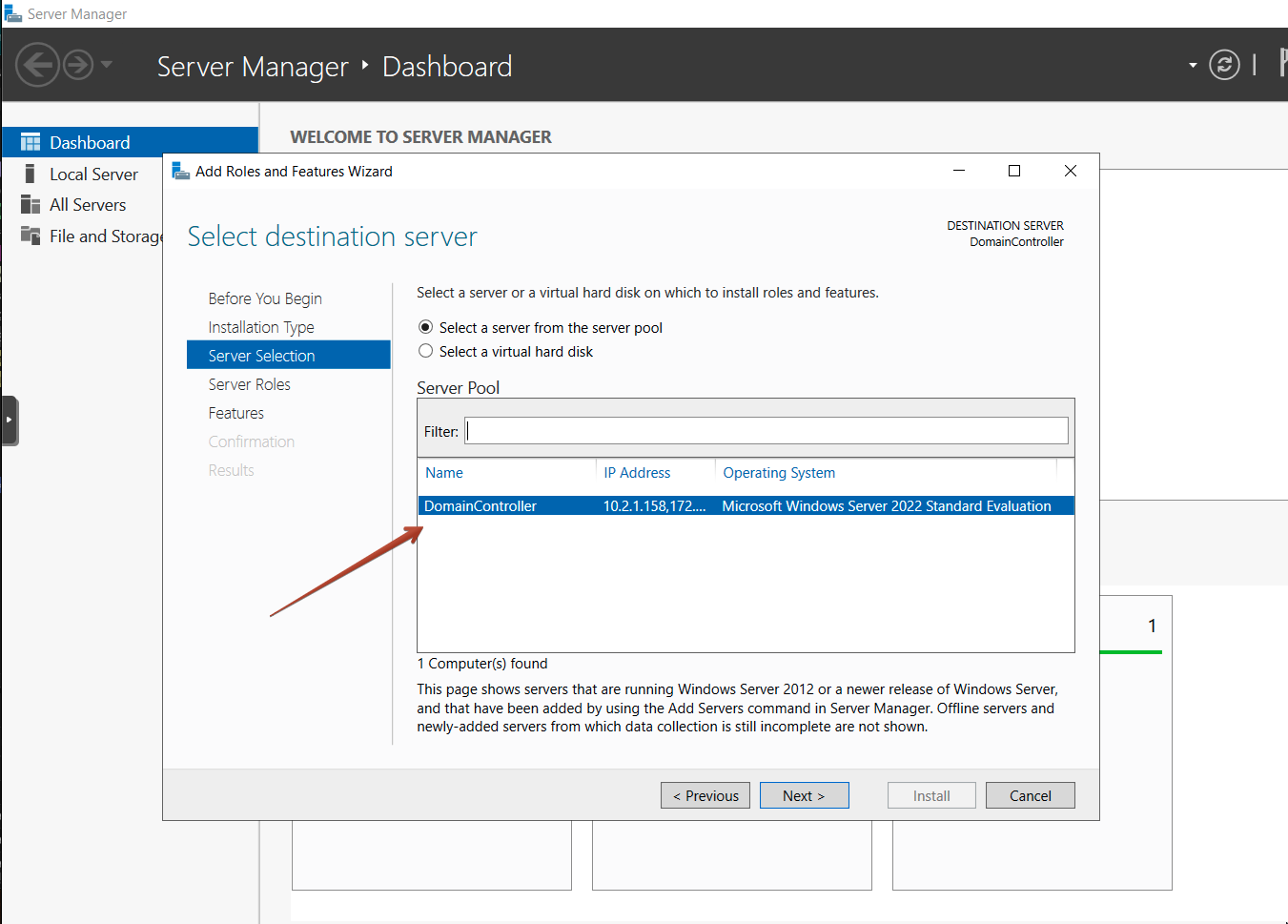
-
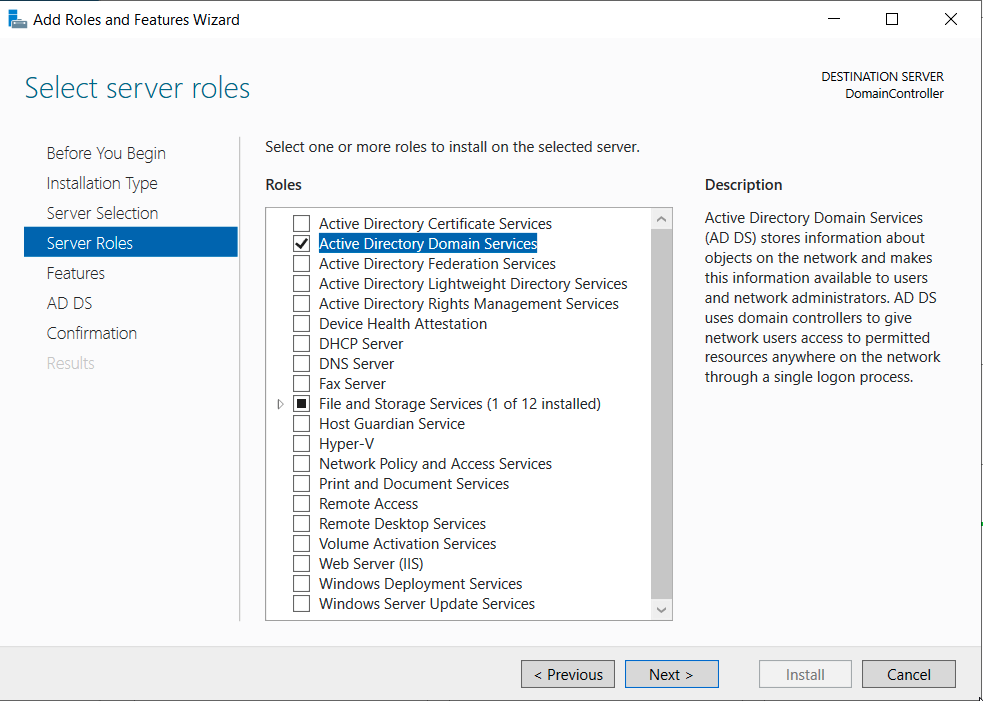
Select Active Directory Domain Services from the list of roles and click Next. A popup windows appears asking you to add features that are required for Active Directory Domain Services. Click Add Features.
-
Click Next until you reach the Install button. Click Install and wait for the process to complete. It can take a few minutes.
-
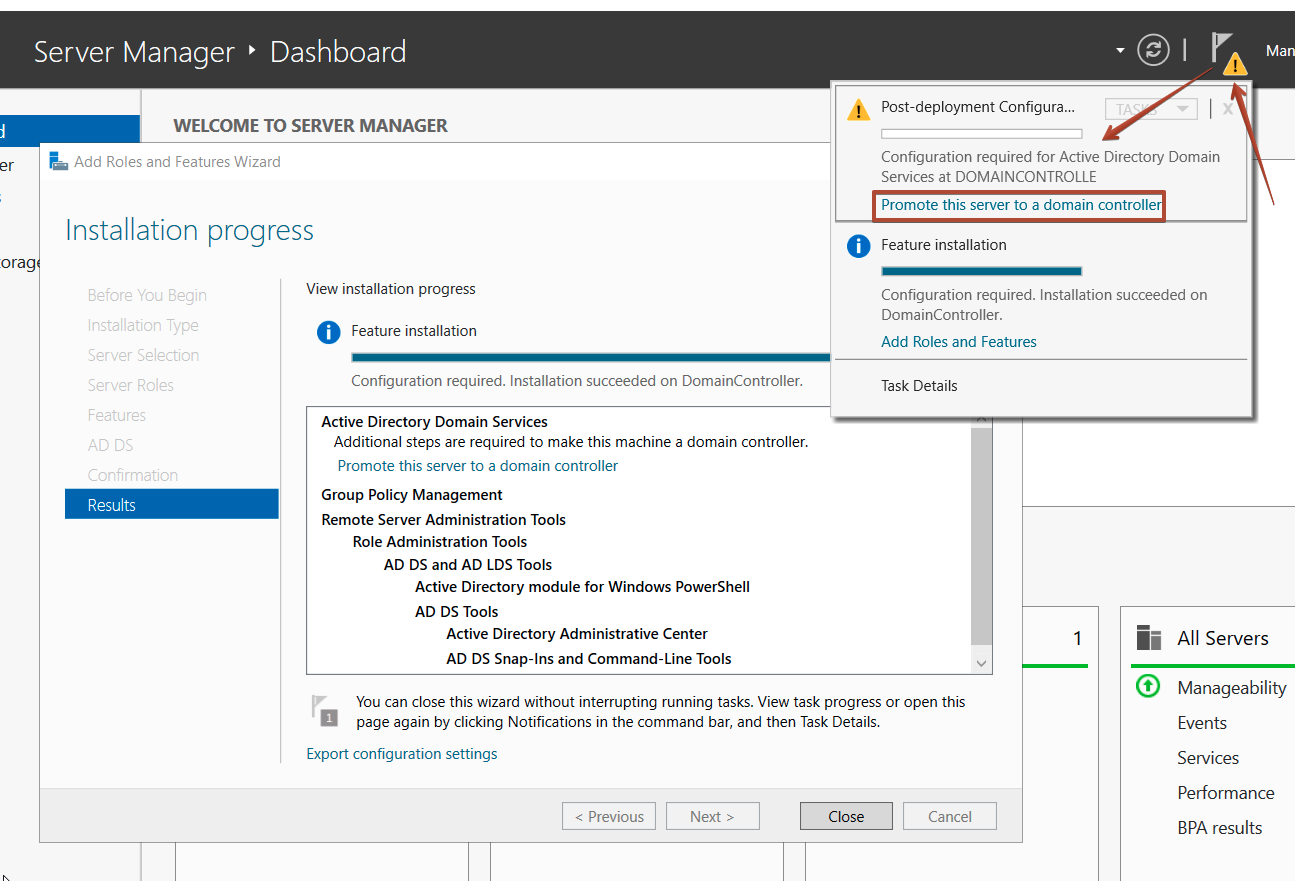
Once the installation has completed, you'll notice a yellow caution sign in the top right navigation menu. Click on it and then click Promote this server to a domain controller.
-
In the Deployment Configuration window, select Add a new forest and enter your root domain name. We'll use
mydomain.comfor our lab environment. the domain could be anything you like - bg-lab.local might be something I'd use - however we will be using a script later that will be looking formydomain.com. Click Next.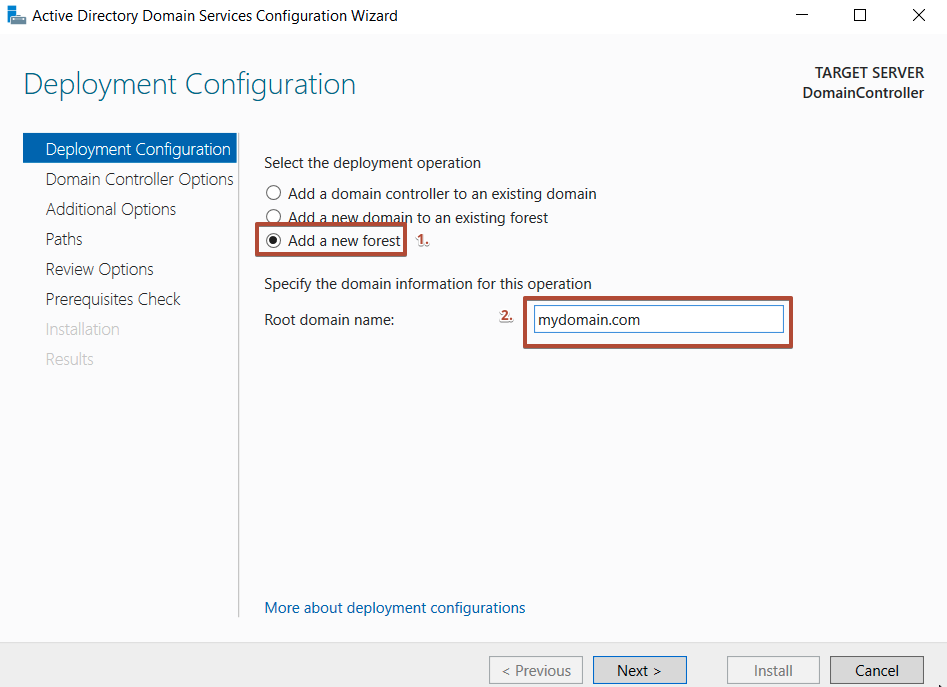
-
In the Domain Controller Options window, leave the defaults, and enter a password and click Next.
-
In the DNS Options window, leave the defaults and click Next.
-
In the Additional Options window, leave the defaults and click Next. In fact you can click Next until you reach the Install button. Windows Server 2022 runs some checks to ensure everything is in order before the installation begins and you may need to scroll down to view all the warnings before the Install button is available. Now you get to wait for the earth to revolve around the sun a few times before you are asked to restart.
You should now see the name of your domain controller when you log in to your server showing the login window with something like MYDOMAIN\Administrator as the username. You can now log in with the password you set during the installation process.