Dockerized Deployment of LibreChat
The LibreChat project is built around Docker making deployment a breeze in a variety of environments. In the last section, we created a DigitalOcean Droplet running Ubuntu 22.04. In this section, we will install Docker on the Droplet and deploy the LibreChat project using Docker.
The LibreChat Docker deployment guide walks through the process indicating explicitly that the installation is the "best" and may not be the quickest. The reason for this claim is that it's meant to make long-term maintenance easier in terms of updates and security patches etc.
Docker on Ubuntu DigitalOcean Droplet
Step 1: Install Docker + Dependencies
-
SSH into your DigitalOcean Droplet using the following command:
ssh <yourusername>@<your-droplet-ip>noteUse the non-root user you created in the previous section. If you can only SSH into the Droplet with the root user, you can switch to your non-root user with
su - <yourusername>. -
Update the package list and install the required dependencies:
sudo apt updatesudo apt install apt-transport-https ca-certificates curl software-properties-common gnupg lsb-releaseThis will install a number of packages:
apt-transport-https- allows the use of repositories accessed via the HTTP Secure protocol (HTTPS)ca-certificates- allows the system to check the authenticity of SSL certificatescurl- a command-line tool for transferring data with URLssoftware-properties-common- provides an abstraction of the used apt repositories and allows for easy management of software sourcesgnupg- GNU Privacy Guard, a complete and free implementation of the OpenPGP standard as defined by RFC4880 (also known as PGP)lsb-release- provides information about the Linux distribution you are using to help with package management
Step 2: Add Docker Repository
-
Add the Docker GPG key to your system:
curl -fsSL https://download.docker.com/linux/ubuntu/gpg | sudo gpg --dearmor -o /usr/share/keyrings/docker-archive-keyring.gpg -
Add the repository to the source list
echo "deb [arch=$(dpkg --print-architecture) signed-by=/usr/share/keyrings/docker-archive-keyring.gpg] https://download.docker.com/linux/ubuntu $(lsb_release -cs) stable" | sudo tee /etc/apt/sources.list.d/docker.list > /dev/null -
Refresh your packges
sudo apt update
Step 3: Install Docker
-
Install Docker
sudo apt install docker-ce docker-ce-cli containerd.ioThe LibreChat guide suggests installing the
docker-cepackage, which is the community edition of Docker. This is the recommended package for our purpose. They note that many Linux distributions have docker-io packages in their repositories, but the Docker repository is the best place to get the latest version.warningWhen I performed these steps I got a message about a New Kernel being available and that I should reboot the server. I did this and then continued with the installation. I selected
OKand then another meassage appeared about the some services needing to be restarted. I selectedOKagain and the services restarted. -
Ensure your user has permissions to run Docker commands:
sudo usermod -aG docker $USER -
Reboot the server
sudo reboot -
Your SSH session will be disconnected. Wait a few moments and then SSH back into the server.
ssh <yourusername>@<your-droplet-ip> -
Change users to your non-root user:
su - <yourusername> -
Verify that Docker is installed and running:
sudo systemctl status dockerYou should see output indicating that Docker is active and running:

Step 4: Install Docker Compose
The LibreChat docker guide inidcates that the version of Docker Compose available in the Ubuntu repositories may not be the latest version. They recommend installing the latest version from the Docker GitHub repository.
-
Download the latest version of Docker Compose:
sudo curl -L https://github.com/docker/compose/releases/download/v2.26.1/docker-compose-`uname -s`-`uname -m` -o /usr/local/bin/docker-compose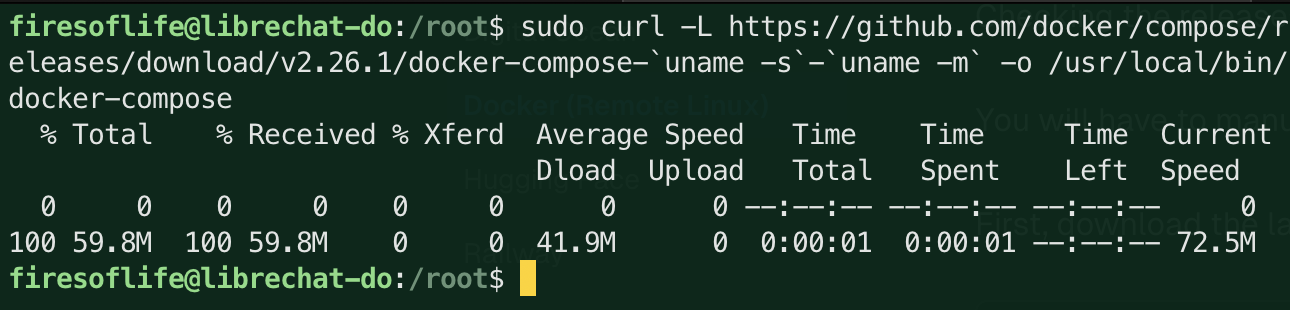
-
Apply executable permissions to the binary:
sudo chmod +x /usr/local/bin/docker-compose -
Verify that Docker Compose is installed:
docker-compose --versionYou should see output indicating the version of Docker Compose that you installed:
Step 5 - More Dependencies: Git & NPM
If you've browsed through the LibreChat documenations, you may have noticed that it is a very active project. This means that there are frequent updates and changes. To ensure that you have the latest version of the project, you will need to install Git and NPM which will make updating the app easier.
-
Install git, nodejs and npm:
sudo apt install git nodejs npmThis will install the latest versions of Git, Node.js, and NPM on your server so be patient as it may take a few moments. Note that the packages are pretty darn old. You can check the versions by running:
 git --version
 node --version
 npm --version
Step 6: Update Git, Node.js, and NPM (Optional)
Git
-
Add the Git PPA:
sudo add-apt-repository ppa:git-core/ppaThis will output a description that tells us we are on track and where we want to be: "The most current stable version of Git for Ubuntu"
-
Make sure to update the package list:
sudo apt update
- Install the latest stable version of Git:
sudo apt install git
git --version
Node.js and NPM
- Add the NodeSource repository:
curl -fsSL https://deb.nodesource.com/setup_20.x | sudo -E bash -
-
Install Node.js and NPM:
sudo apt install -y nodejswarningYou may get an error on the nodejs install related to
libnode-devusing a file that can't be overritten by the new package. If you do, you can remove the libnode-dev package using the following steps:-
Remove the conflicting libnode-dev package:
sudo apt remove libnode-dev -
Fix broken package dependencies:
sudo apt --fix-broken install -
Reinstall Node.js and NPM:
sudo apt install -y nodejs
If your installation was successful you should see the following output. If not, ensure you've removed the older conflicting package and fixed the broken dependencies.

-
-
Verify the installation:
node --version
npm --version
You should see output indicating the versions of Node.js and NPM that you installed. Yours should be at least as recent as the versions shown below:

The Ubuntu Droplet is now prepped and ready to install the app. Here is a recap of the steps we've taken:
- Created a DigitalOcean Droplet running Ubuntu 22.04
- Updated the package list and installed required dependencies
- Added the Docker repository to the source list
- Installed Docker and Docker Compose
- Installed Git, Node.js, and NPM
- Updated Git, Node.js, and NPM (optional)
Jump over to the next section to deploy the LibreChat app using Docker.